

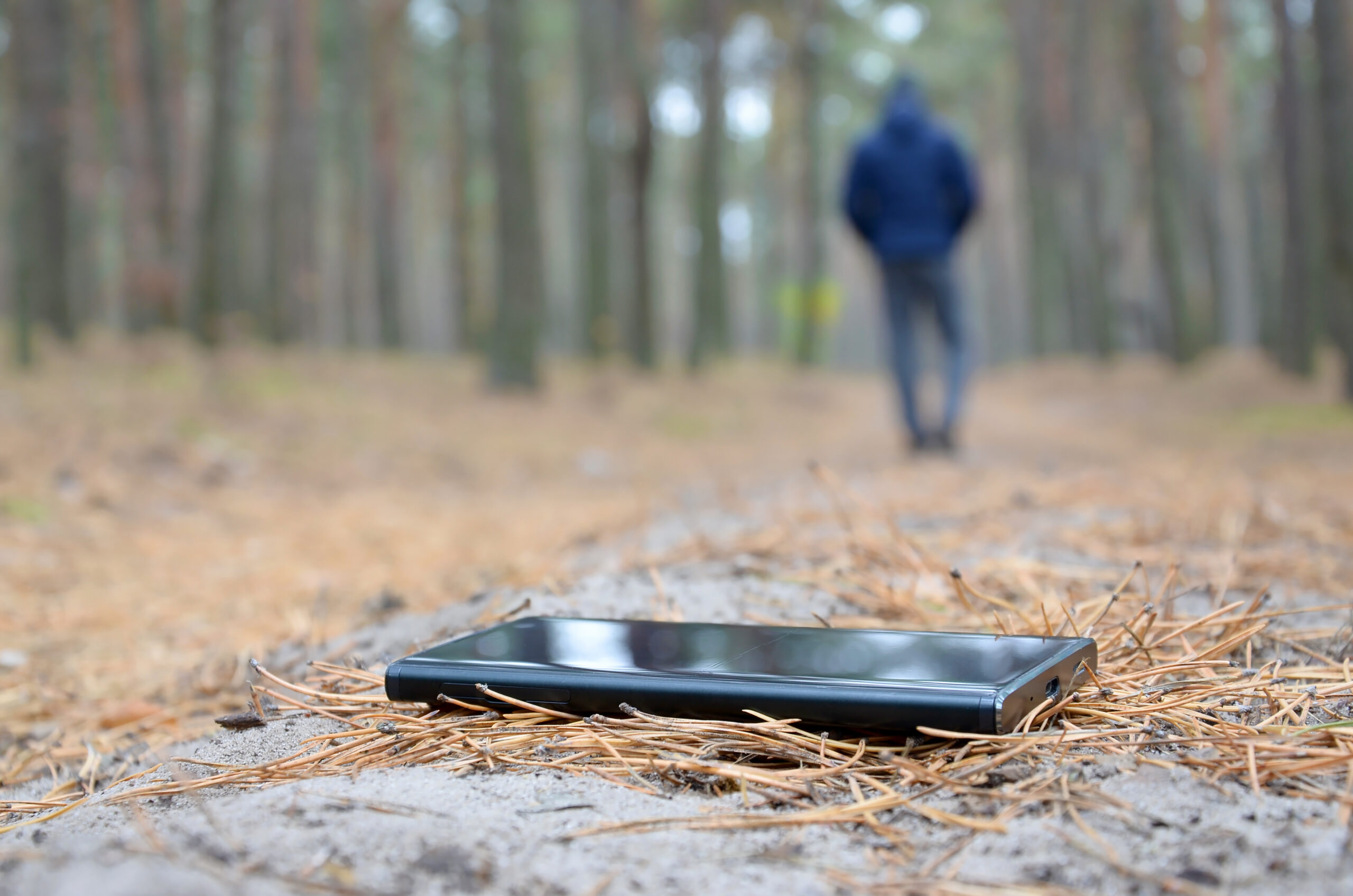
Losing your iPhone can be one of the most stressful experiences, especially if it contains your personal photos, contacts, banking apps, work files, and important memories. Whether you left it in a taxi, misplaced it in a shopping mall, or think it was stolen, acting quickly can greatly improve your chances of getting it back.
If you’re in Nairobi or anywhere else in Kenya, don’t panic. Apple provides powerful tools that can help you locate, secure, or erase your iPhone remotely. This guide explains everything you need to do in simple, easy-to-understand language.
Stay Calm and Think About Where You Last Used Your iPhone
The first thing to do is stay calm. Many people assume their phone has been stolen when it has simply been left behind.
Take a few minutes to think about where you last used your iPhone. Ask yourself questions like:
- Did you leave it in a taxi or ride-sharing vehicle?
- Was it at a restaurant or coffee shop?
- Did you forget it at work or school?
- Is it somewhere in your home, office, or car?
If you believe it’s nearby, try calling your number from another phone. Someone may answer, or you may hear your ringtone if the phone is close.
Use Find My iPhone Immediately
Apple’s Find My feature is the best tool for finding a lost iPhone. If it was turned on before your phone went missing, you may be able to see its location.
Using another Apple device or any web browser:
- Sign in to your Apple account.
- Open the Find My app or visit iCloud.
- From the list of devices, choose your missing iPhone.
- Check its current or last known location.
If your iPhone is online, you’ll see its location on a map. If it’s offline, Apple will show the last location before it disconnects.
Play a Sound If Your iPhone Is Nearby
If the map shows that your iPhone is close, use the Play Sound option.
Even if your phone is on silent mode, it will play a loud sound for several minutes. This makes it much easier to find if it’s under a couch, inside your bag, or somewhere nearby.
This feature is especially useful if you’ve misplaced your phone at home, in your office, or at a friend’s house.
Turn On Lost Mode
If you can’t reach your iPhone right away, the next step is to enable Lost Mode.
Lost Mode helps protect your personal information by locking your iPhone remotely.
It also allows you to:
- Display a custom message on the screen.
- Add another phone number where someone can reach you.
- Prevent anyone from accessing your personal data.
For example, your message could say:
“This iPhone has been lost. Please call this number if found. Thank you.”
If an honest person finds your phone, they’ll know exactly how to contact you.
Check If Your iPhone Is Moving
After activating Lost Mode, keep checking the location through Find My.
If the phone stays in one location, it may have been left there.
If the location keeps changing, it could mean:
- Someone picked it up.
- It’s traveling in a vehicle.
- It may have been stolen.
Avoid trying to recover the phone yourself if it appears to be in an unfamiliar location. Your personal safety is always more important than your device.
Contact Your Mobile Network Provider
If you believe your iPhone has been stolen or is permanently lost, contact your mobile service provider in Kenya as soon as possible.
Ask them to:
- Suspend your SIM card.
- Prevent unauthorized calls or data usage.
- Help you replace your SIM card if needed.
Blocking your SIM also helps protect accounts that use SMS verification codes.
Change Important Passwords
Changing the passwords for significant accounts is still a good idea, despite Apple’s robust security.
Start with:
- Apple Account password
- Email account
- Mobile banking apps
- Mobile money services
- Social media accounts
- Shopping apps
If your iPhone falls into the wrong hands, changing these passwords adds another layer of protection.
Erase Your iPhone Remotely If Necessary
If you believe your iPhone cannot be recovered, Apple allows you to erase all your personal information remotely.
This feature deletes your:
- Photos
- Messages
- Contacts
- Apps
- Personal files
- Saved passwords
Only use this option when you’re confident your device is unlikely to be recovered because, once erased, you won’t be able to continue tracking it through Find My.
If your phone later reconnects to the internet, the erase command will run automatically.
Report the Loss to the Police
If you suspect your iPhone has been stolen, report the incident to your nearest police station.
Provide as much information as possible, including:
- Device model
- Color
- Approximate location where it was lost
- Time it went missing
- IMEI number (if available)
Having an official police report may also help if you need to make an insurance claim.
Keep an Eye on Your Apple Account
Continue monitoring your Apple account for any unusual activity.
If you receive emails saying someone tried to sign in or change your account details, review them carefully.
Never enter your Apple ID credentials into links sent through suspicious emails or text messages. Scammers often send fake messages claiming they’ve found your iPhone to trick you into revealing your password.
Always access your Apple account through Apple’s official website or your trusted devices.
What If Find My Wasn’t Enabled?
If Find My wasn’t turned on before your iPhone disappeared, locating it becomes much more difficult.
In this situation you should:
- Contact your network provider immediately.
- Change all important passwords.
- Report the loss to the police.
- Monitor your accounts for unusual activity.
Unfortunately, Apple cannot locate a device if Find My was never enabled.
How to Prepare for the Future
The best way to reduce stress if your iPhone goes missing again is to prepare in advance.
Here are a few simple habits that can help:
-
Always Keep Find My Enabled
This is the most important step. It gives you the best chance of locating your iPhone if it is ever lost.
-
Enable Two-Factor Authentication
This adds extra protection to your Apple account, making it much harder for someone else to access your information.
-
Back Up Your iPhone Regularly
Use iCloud or a computer to create regular backups.
If your phone is lost permanently, you’ll still have access to your photos, contacts, messages, and other important files.
-
Save Your IMEI Number
Write down your iPhone’s IMEI number and keep it somewhere safe.
You can find it:
- In your Apple account
- On the original iPhone box
- In your purchase receipt
This number may be useful when reporting your phone as lost or stolen.
Common Mistakes to Avoid
Many people make simple mistakes after losing their iPhone.
Try to avoid these:
- Waiting several hours before using Find My.
- Turning off Lost Mode too early.
- Sharing your Apple ID password with strangers.
- Clicking fake “We found your iPhone” links.
- Trying to recover a stolen phone by yourself.
- Forgetting to change important account passwords.
Taking the right steps early can make a big difference.
Conclusion
Losing your iPhone in Nairobi or anywhere else in Kenya can be upsetting, but acting quickly gives you the best chance of protecting your information and recovering your device. Apple’s Find My feature, Lost Mode, and remote security options are designed to help you stay in control even when your phone is missing.
The most important thing is to respond immediately. Check your phone’s location, lock it using Lost Mode, contact your mobile network provider, and secure your important accounts. If recovery isn’t possible, remotely erase your data and report the incident to the police.
A little preparation today such as enabling Find My, backing up your data, and keeping your account secure can save you a lot of stress if your iPhone is ever lost in the future.