

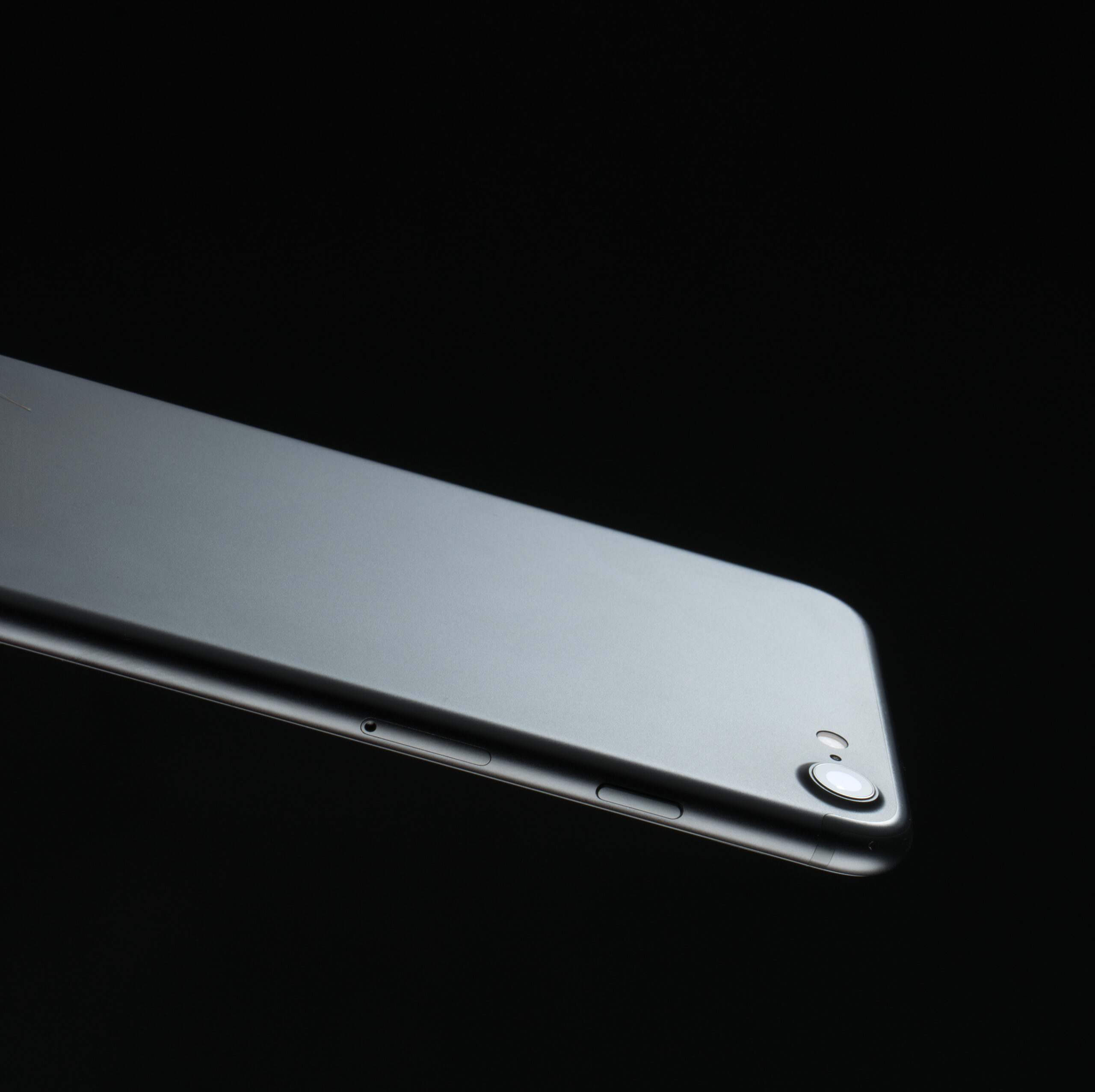
If you own an iPhone SE and live in Nairobi, Kenya, you may be wondering whether your phone can run iOS 17 and how to update it safely. The good news is that supported iPhone SE models can receive the iOS 17 update and enjoy new features, better security, and improved performance.
This guide explains everything you need to know.
Which iPhone SE Models Support iOS 17?
Not every iPhone SE model can run iOS 17. The following models are supported:
- iPhone SE (2nd Generation – 2020)
- iPhone SE (3rd Generation – 2022)
If you have the first-generation iPhone SE released in 2016, it cannot be updated to iOS 17.
Why Update to iOS 17?
Updating your iPhone gives you access to:
- Better security and privacy protection
- Improved phone performance
- New messaging features
- More customization options
- Bug fixes and system improvements
Keeping your phone updated helps it stay secure and work smoothly.
How to Update Your iPhone SE to iOS 17
Follow these simple steps:
1. Connect to Wi-Fi
Use a stable Wi-Fi connection before downloading the update.
2. Charge Your Phone
Make sure your battery is above 50% or keep the phone plugged into a charger.
3. Back Up Your Data
Save your photos, contacts, and important files to iCloud or a computer.
4. Check for the Update
Go to:
Settings > General > Software Update
If iOS 17 is available, you will see an option to download it.
5. Download and Install
Tap Download and Install and follow the instructions on the screen.
Your iPhone may restart several times during the process.
Common Problems During the Update
Not Enough Storage
Delete unused apps, videos, or photos to free up space.
Slow Download Speed
A weak internet connection can slow the update. Try using a faster Wi-Fi network.
Update Not Showing
Check that your iPhone SE model supports iOS 17 and that you are connected to the internet.
Is iOS 17 Good for iPhone SE Users?
Yes. Most users find that iOS 17 brings useful improvements and security updates. The iPhone SE (2nd and 3rd generation) generally handles the update well and continues to provide a smooth experience.
Tips for Nairobi Users
- Update using a reliable Wi-Fi connection to avoid mobile data charges.
- Back up important files before starting.
- Install updates during the evening or when you do not need your phone for a while.
- Keep enough free storage available for future updates.
How long does it take to install iOS 17?
The iOS 17 update usually takes 30 minutes to 1 hour to download and install on an iPhone SE. The exact time depends on your internet speed, available storage space, and the model of your device. Using a fast Wi-Fi connection and having enough free storage can help the update finish more quickly.
What should I do if my iPhone SE runs slowly after updating?
If your iPhone SE feels slow after updating to iOS 17, don’t worry. This can happen temporarily because the phone is finishing background tasks such as indexing photos, apps, and files. Try restarting your iPhone, closing unused apps, freeing up storage space, and making sure all apps are updated. In many cases, performance improves within a few days after the update is installed. You might try to reset settings or get in touch with Apple Support for more help if the issue persists.
Conclusion
The iOS 17 update is a great choice for supported iPhone SE models in Nairobi, Kenya. It brings new features, stronger security, and better overall performance. Before updating, back up your data, connect to Wi-Fi, and make sure your device has enough storage space. Following these simple steps will help you enjoy a smooth and successful update experience.